
Getting started · Settings · Pro features · FAQ · Changelog
Getting started
Install Porta (free)
- Upload the
portafolder to/wp-content/plugins/, or install the plugin from the Plugins screen. - Activate Porta through the Plugins screen.
- Go to Appearance > Porta to choose a starter palette or set your logo and colors.
- Save changes, then open the login page to confirm the result.
Install Porta Pro
- Install and activate the free Porta plugin first. Pro is an add-on and requires it.
- Upload the
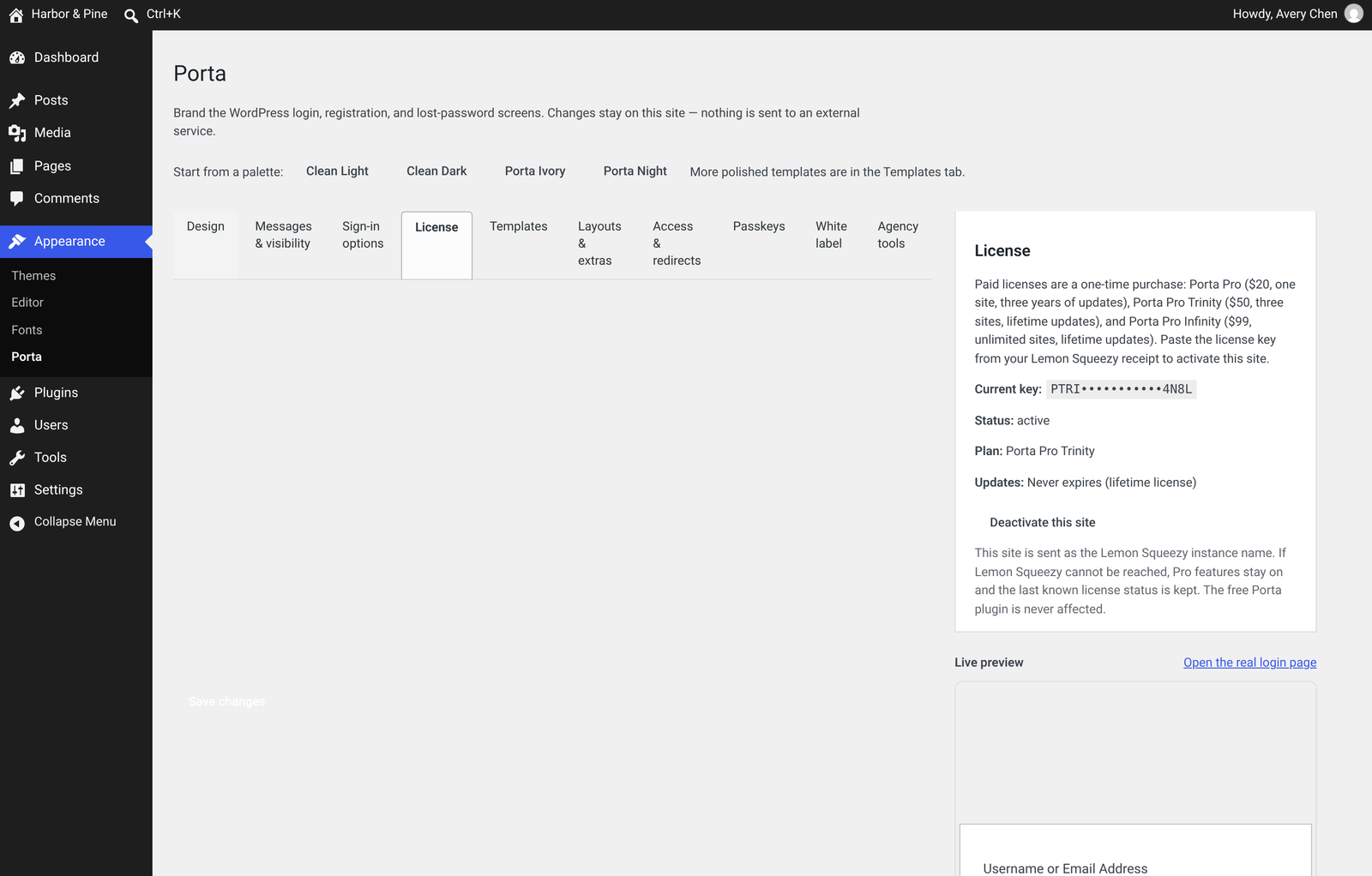
porta-profolder to/wp-content/plugins/and activate it. Pro requires PHP 8.0 or newer. - Go to Appearance > Porta (License tab) and paste the key from your Lemon Squeezy receipt.
Settings

Design
- Logo: custom image, size, link and hover title
- Background: color, gradient, or an image from the Media Library
- Form: colors, border, radius, padding, width and shadow
- Inputs and buttons: colors, including hover and focus states
- Labels and links: colors
- Custom CSS: applied only on the login screens
- Starter palettes: Clean Light and Clean Dark
Sign-in options
- Sign in with username, email, or both
- Show-password eye toggle (on by default; can be turned off)
- Tick “Remember me” by default
- Honeypot: a hidden field that stops many simple bots, with no third-party captcha or API
- Attempt limit: a local, IP-based limit on failed sign-ins
define( 'PORTA_LOGIN_DISABLE_LOCKOUT', true ); to wp-config.php, sign in, then raise the limit or turn it off. Messages
- One optional custom error message
- Hide the “Go to site” link or the language switcher
Pro features
Templates

Passkeys
Passkey sign-in lets people use Windows Hello, Face ID, Touch ID or a security key. Passkeys are stored on your WordPress site only, with no third-party service. Passkeys need HTTPS; on a site without SSL the passkey button stays hidden. To set up: enable passkeys under Appearance > Porta, then each user adds a passkey from their own Profile page (Users > Profile) and uses “Sign in with a passkey” on the login screen. Password sign-in stays available as a fallback. If you turn on “Require passkey” and a user loses their device, add define( 'PORTA_LOGIN_ALLOW_PASSWORD_FALLBACK', true ); to wp-config.php to allow password sign-in again.

Custom login URL and recovery
Move your login to an address of your choosing, and direct visits to wp-login.php are blocked. When you set or change the address, Porta emails the site’s administrator address the new login URL plus a one-time recovery link, so keep that email. If you’re ever locked out, use the recovery link, or add define( 'PORTA_LOGIN_DISABLE_CUSTOM_URL', true ); to wp-config.php and sign in at wp-login.php as usual.

Role-based redirects

White-label admin
Brand the WordPress admin for client hand-offs: hide the WordPress logo in the admin bar or replace it with your own, set custom admin footer text, and add a dashboard widget with your own title and message. This changes only the admin, not your public pages.

Import and export
Activity log

Also included
- Auto-logout, math captcha, terms checkbox and a maintenance gate
- A login form shortcode and block
FAQ
No. The free plugin only styles the existing login screens and adds optional sign-in behavior. A custom login URL is part of Pro, which includes an emailed recovery link and a wp-config.php constant so you can always get back in.
Add define( 'PORTA_LOGIN_DISABLE_LOCKOUT', true ); to wp-config.php, save the file, and sign in. You can then raise the limit or turn the limiter off.
No. The free plugin does not load Google Fonts, analytics, or any other remote asset on your login page.
Porta styles wp-login.php (and the registration and lost-password forms on that screen). It does not need a page builder.
Yes, sold separately as a one-time purchase: Porta Pro ($20, one site, three years of updates), Porta Pro Trinity ($50, three sites, lifetime updates) or Porta Pro Infinity ($99, unlimited sites, lifetime updates). The free plugin does not require a license key.
Deactivate and delete the plugin. Uninstall removes its settings. Media Library images you uploaded are left in the library.
Changelog
Privacy fix for the login-page font picker. Font downloads are now all-or-nothing: if any font file can’t be saved, nothing is kept and your current font stays as it was. The login page also refuses to load any leftover Google Fonts link and falls back to system fonts, so visitors’ browsers never contact Google. The free Porta plugin is unchanged.
- Initial release.